
How to Turn Your PC Into a Retro Console in 2026 (Complete Emulator Guide)

Retro Gaming Is Back — And Your PC Can Run Almost Any Console
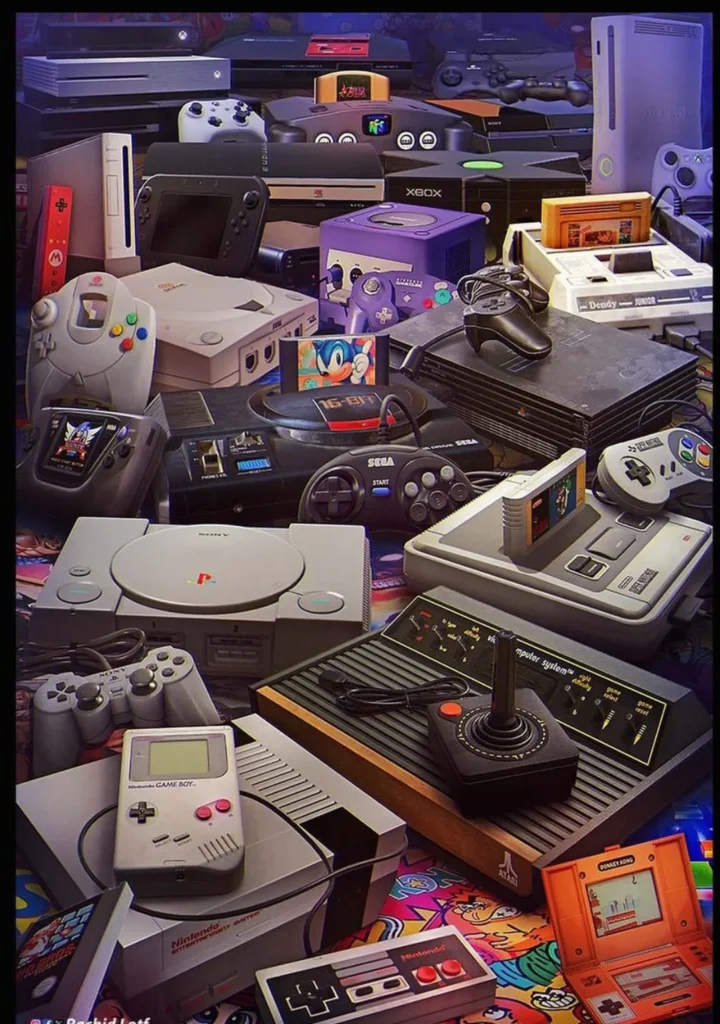
Gaming never really forgets its past. While modern graphics keep getting better every year, millions of players still go back to old consoles like NES, PlayStation, Dreamcast, or PS2. The problem is simple — many of those games were never released on PC, and original consoles are getting harder to find.
This is where emulation comes in.
In 2026, emulators allow you to turn a regular PC into a universal retro console. You can play games from 80s, 90s, 2000s, and even some modern systems using one device, one controller, and one library.
In this guide, we will show you how to set up emulators, how to organize ROMs and BIOS files, and how to play games from multiple classic consoles including:
- NES
- SNES
- Sega Mega Drive
- Neo Geo
- 3DO
- PlayStation
- Nintendo 64
- Sega Saturn
- Dreamcast
- PlayStation 2
- Wii
- Nintendo DS
- Nintendo 3DS
- Nintendo Switch
This guide is focused on classic and retro systems that work best with emulation today.
If you want to turn your PC into the ultimate old-school gaming machine, this is the only guide you need.
What Is Emulation?
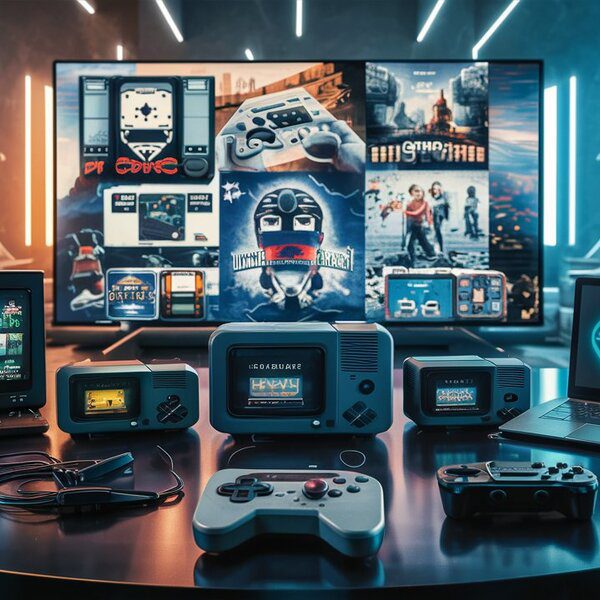
Emulation is a way to run games from old consoles on modern hardware. Instead of using the original system, you use special software called an emulator that recreates how the console worked.
For example, a PlayStation 2 emulator allows your PC to behave like a real PS2. The same thing works for Nintendo, Sega, arcade machines, and many other systems.
An emulator does not contain games by itself. To play, you need game files (usually called ROMs or ISOs) and sometimes BIOS files, which help the emulator copy the original hardware behavior.
Modern PCs are powerful enough to emulate most classic consoles without problems. Even a mid-range laptop can run games from PS2, Dreamcast, Wii, or Nintendo DS with good performance.
Because of this, emulation became the most popular way to play old games in recent years.
Best Games for Couples to Play Together in 2026: Co-op From Easy to Competitive
Top 10 Asian Games That Conquered the World
Why Retro Games Are So Popular Again
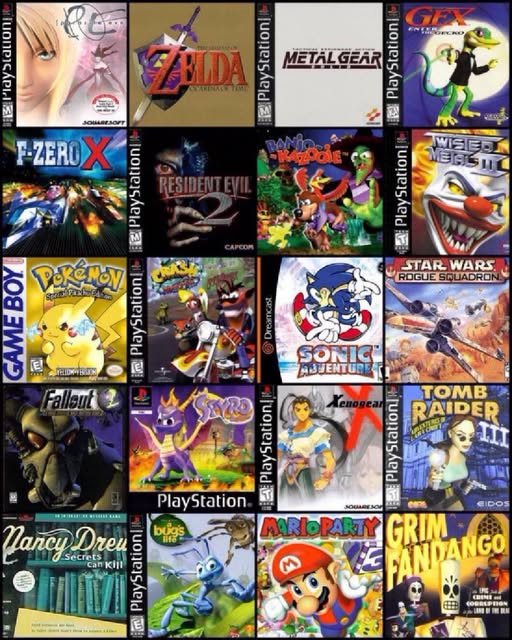
There are several reasons why retro gaming became popular again.
First, many classic games were never released on PC. Some titles stayed exclusive to consoles like Saturn, PS2, or Nintendo 64, and the only way to play them today is through emulation.
Second, older games often focused more on gameplay than graphics. They are easy to start, fun to replay, and don’t require huge downloads or modern hardware.
Another reason is nostalgia. Players who grew up with old consoles want to experience those games again, but original hardware is expensive, rare, or unreliable.
Emulation solves all these problems.
You can keep thousands of games on one hard drive, use modern controllers, save anytime, and even improve graphics in many cases.
Because of this, retro emulation is more popular now than it was 10 years ago.
Why Many Console Games Never Came to PC
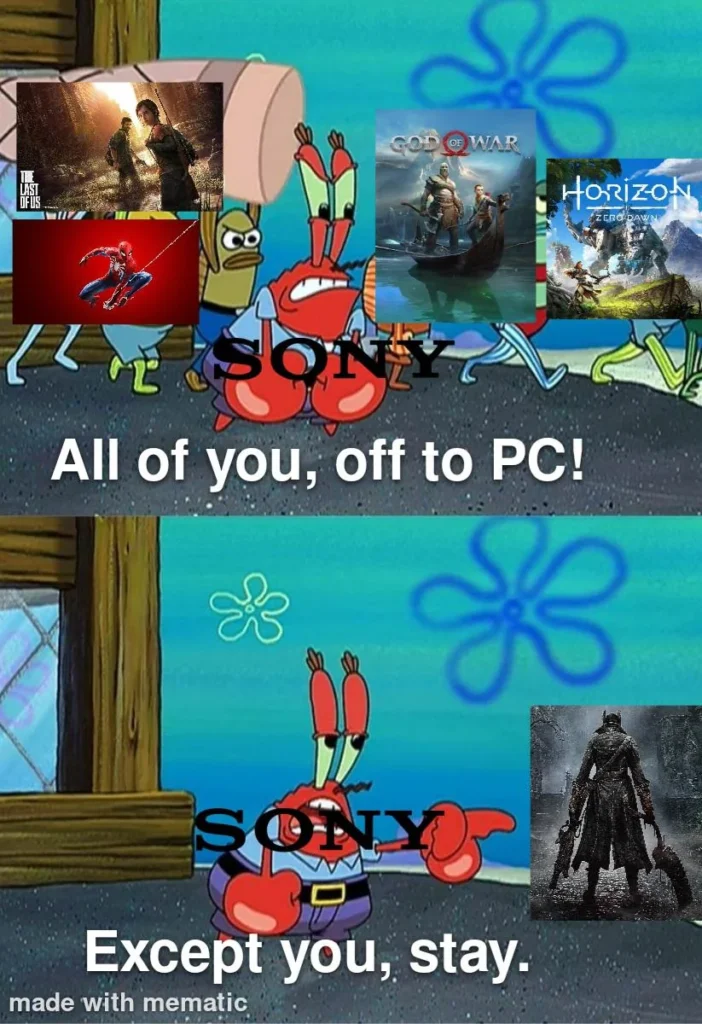
One of the biggest reasons people use emulators is simple — a huge number of console games never got PC versions.
In the past, many developers worked only with one platform. Some games were made specifically for PlayStation, some for Nintendo, and some for Sega. There was no reason to release them on PC, and sometimes it was technically impossible.
Even today, a lot of classic titles from PS2, Saturn, Dreamcast, or Nintendo consoles are still locked to those systems.
Remasters exist, but only for a small part of the library.
That means if you want to play many of the best games ever made, emulation is often the only realistic option.
In the next sections, we will show what you need before installing emulators and how to prepare your PC for retro gaming.
What You Need Before Installing Emulators
Before turning your PC into a retro gaming machine, you need to prepare a few things. Modern emulators are much easier to use than they were years ago, but some basic setup is still required.
You don’t need an expensive gaming PC to run most classic consoles. However, having the right hardware, controller, and file structure will make the experience much better.
Below are the main things you should prepare before installing any emulator.
A PC or Laptop
Almost any modern computer can run old console games, but performance depends on the system you want to emulate.
Very old consoles like NES, SNES, Mega Drive, or PlayStation work on almost any PC. Even weak laptops can run them without problems.
More advanced systems like PlayStation 2, Dreamcast, Wii, or Nintendo 3DS need a stronger CPU, but still don’t require high-end hardware.
Nintendo Switch emulation is heavier, but most modern mid-range PCs can run many games if configured correctly.
In general, if your computer can run modern indie games or older PC titles smoothly, it should be powerful enough for retro emulation.
Recommended setup for comfortable emulation in 2026:
- 16 GB RAM or more
- SSD storage
- Modern CPU (Intel i5 / Ryzen 5 or better)
- GPU with Vulkan support
- Windows 10 / Windows 11 / Linux
You don’t need a top gaming PC, but newer hardware always gives better compatibility.
Game Controller (Recommended)
You can play with keyboard, but most console games feel much better with a controller.
Almost all emulators support modern gamepads without extra software.
Best options:
- Xbox controller
- PlayStation controller
- Generic USB gamepad
- Bluetooth controller
Xbox-style controllers usually work with the least problems on Windows, because most emulators detect them automatically.
If you plan to play games from many different consoles, using one comfortable controller is much easier than switching between keyboard layouts.
Enough Storage for Games
Retro games are not very big compared to modern titles, but the size depends on the console.
Old systems like NES or SNES games take only a few megabytes.
PlayStation, Dreamcast, and PS2 games can take hundreds of megabytes or several gigabytes each.
Nintendo Switch games can be very large, sometimes over 10 GB.
If you want to build a big retro library, using an SSD with enough free space is highly recommended.
Keeping all ROMs in one organized folder will make emulator setup much easier later.
ROMs, ISOs, and BIOS Files (Basic Explanation)
To play games on emulators, you need game files. These files are usually called ROMs or ISOs depending on the console.
ROM — used for cartridge systems like NES, SNES, Mega Drive, Game Boy
ISO / BIN / CUE — used for disc systems like PlayStation, Saturn, Dreamcast, PS2
XCI / NSP — used for Nintendo Switch
Some emulators also need BIOS files.
BIOS is a small system file taken from the original console that allows the emulator to work correctly.
Not every system requires BIOS, but consoles like PlayStation, PS2, Saturn, and Dreamcast usually need one.
We will explain where to put ROMs and BIOS files later in this guide.
Why Using One Emulator Setup Is Better Than Installing Everything Separately
You can install each emulator manually, but this becomes messy very quickly if you want to play games from many consoles.
Different emulators use different folders, different settings, and different controllers. Managing everything separately takes time and can be confusing.
Because of this, most players today prefer using emulator packs or managers that install everything automatically.
The most popular solution in 2026 is EmuDeck, which can set up dozens of emulators at once and organize your games in one place.
In the next section, we will show why EmuDeck is the best way to emulate multiple consoles on PC and how to install it step by step.
Best Way to Emulate Multiple Consoles in 2026 — Why EmuDeck Is the Easiest Solution
If you only want to emulate one console, you can install an emulator manually.
But if you plan to play games from many systems like NES, PlayStation, Dreamcast, PS2, Wii, or Switch, installing everything separately quickly becomes confusing.
Different emulators use different settings, different folders, and different controls.
After a few installations, your PC turns into a mess of files, plugins, and configuration windows.
That’s why most retro players today use emulator managers.
The most popular solution in 2026 is EmuDeck.
EmuDeck is a tool that installs and configures multiple emulators automatically.
It creates the correct folders, sets the best settings, and allows you to keep all your games in one organized library.
Instead of installing 10–15 emulators manually, you install everything at once.
For a setup like the one in this guide — with many classic consoles — EmuDeck is the easiest and safest choice.
What Is EmuDeck?
EmuDeck is a setup tool designed to turn your PC into a universal gaming system.
Originally it was created for Steam Deck, but now it works perfectly on Windows and Linux PCs as well.
When you install EmuDeck, it automatically installs the most popular emulators, configures them, and creates folders for ROMs and BIOS files.
You don’t need to search for each emulator yourself, and you don’t need to change complicated settings manually.
This makes EmuDeck perfect for beginners, but also very useful for experienced users who want everything in one place.
Consoles Supported in This Guide
This guide focuses on classic and retro systems that work well with emulation today.
With EmuDeck, you can easily play games from:
- NES
- SNES
- Sega Mega Drive
- Neo Geo
- 3DO
- PlayStation
- Nintendo 64
- Sega Saturn
- Dreamcast
- PlayStation 2
- Wii
- Nintendo DS
- Nintendo 3DS
- Nintendo Switch
These consoles cover more than 30 years of gaming history, from 8-bit classics to modern titles.
Most of the best games from these systems were never released on PC, which makes emulation the only practical way to play them today.
Why EmuDeck Is Better Than Installing Emulators Manually
You can always download each emulator separately, but this takes time and often causes problems.
Manual setup means:
- finding the correct emulator version
- setting video backend
- configuring controller
- creating ROM folders
- adding BIOS files
- fixing performance issues
EmuDeck does all this automatically.
It installs recommended emulators, applies stable settings, and keeps everything organized in one structure.
This is especially useful if you want to emulate many consoles at the same time, like in this guide.
For most users, EmuDeck saves hours of setup time.
What EmuDeck Installs Automatically
When you install EmuDeck, it can set up emulators for almost every classic system.
For the consoles in this guide, EmuDeck usually installs:
- RetroArch (NES, SNES, Mega Drive, Neo Geo)
- DuckStation (PlayStation)
- Mupen64 / RetroArch core (Nintendo 64)
- Mednafen / Yaba Sanshiro (Saturn)
- Flycast (Dreamcast)
- PCSX2 (PlayStation 2)
- Dolphin (Wii)
- melonDS (Nintendo DS)
- Citra (Nintendo 3DS)
- Ryujinx (Nintendo Switch)
- Opera / RetroArch core (3DO)
You don’t need to configure them manually unless you want advanced settings.
Everything works out of the box for most games.
Why EmuDeck Is Perfect for Building a Retro Game Library
One of the biggest advantages of EmuDeck is organization.
Instead of keeping games in random folders, EmuDeck creates a clean structure where every console has its own directory.
This makes it easy to store hundreds of games without losing track.
It also allows you to use one controller, one interface, and one launcher for everything.
If you plan to build a large retro collection — like the list of 150 classic games in this guide — using a unified setup is the best solution.
In the next section, we will show how to install EmuDeck step by step and prepare your PC for emulation.
How to Install EmuDeck on PC (Step-by-Step Guide)
Now we can start the real setup.
Installing EmuDeck is the easiest way to turn your PC into a multi-console gaming machine.
The process takes only a few minutes, but it will prepare everything you need for dozens of emulators.
Follow the steps below carefully, and you will have a clean and stable setup ready for retro gaming.
Step 1 — Download EmuDeck
First, you need to download the installer.
Go to the official EmuDeck website and download the Windows version.
Always use the official site to avoid broken builds or unsafe files.
After downloading, run the installer.
Windows may show a security warning because this is a third-party tool.
This is normal — just confirm that you want to run the file.
Step 2 — Choose Easy Mode or Custom Mode
When EmuDeck starts, it will ask how you want to install it.
You will see two options:
Easy Mode
Custom Mode
Easy Mode installs everything automatically with recommended settings.
This is the best choice for most users.
Custom Mode allows you to choose emulators, folders, and advanced options.
Use this only if you already know what you are doing.
For this guide, Easy Mode is recommended.
Step 3 — Select Installation Folder
Next, EmuDeck will ask where to store emulator files and games.
You can choose:
System drive (C:)
Another SSD or HDD
If possible, use an SSD with enough free space.
Emulators work on any drive, but SSD makes loading faster and avoids stuttering in some games.
After selecting the location, EmuDeck will create all required folders automatically.
Step 4 — Let EmuDeck Install Emulators
After choosing settings, EmuDeck will begin installing emulators.
This may take several minutes because it downloads multiple programs.
During installation, EmuDeck will:
- install emulator cores
- configure video settings
- set controller support
- create ROM folders
- create BIOS folders
- prepare launcher files
You don’t need to change anything during this step.
Just wait until the installation finishes.
Step 5 — Folder Structure Created by EmuDeck
After installation, EmuDeck creates a clean folder structure.
Inside your EmuDeck directory, you will see folders like:
roms
bios
tools
emulators
Inside the roms folder, each console has its own directory.
Example:
roms/nes
roms/snes
roms/psx
roms/ps2
roms/saturn
roms/dreamcast
roms/wii
roms/switch
This is where you will put your game files later.
Do not rename these folders, because emulators expect this structure.
Step 6 — First Launch Check
After installation, it is a good idea to open one emulator to make sure everything works.
You can launch emulators from the EmuDeck tools menu or directly from the emulator folder.
Most emulators will start without errors even if you don’t have games yet.
If the emulator opens normally, the setup is correct.
Now your PC is ready for the next step.
In the next section, we will explain where to put ROMs, ISOs, and BIOS files so the emulators can detect your games.
Where to Put ROMs, ISOs, and BIOS Files
After installing EmuDeck, your PC is ready to run emulators, but games will not appear until you add the required files.
Each emulator needs game files, and some consoles also require BIOS files.
If the files are placed in the wrong folder, the emulator may not detect the game.
The good news is that EmuDeck already created the correct structure for you, so all you need to do is put files in the right directories.
Understanding ROMs, ISOs, and Game Files
Different consoles use different types of game files.
Cartridge consoles usually use ROM files.
Disc-based consoles use ISO or BIN/CUE images.
Modern consoles may use other formats.
Common file types:
- NES / SNES / Mega Drive → .rom / .nes / .sfc / .md
- PlayStation → .bin / .cue / .iso / .chd
- Nintendo 64 → .n64 / .z64
- Dreamcast → .cdi / .gdi / .chd
- PlayStation 2 → .iso / .chd
- Wii → .iso / .wbfs
- Nintendo DS → .nds
- Nintendo 3DS → .3ds / .cia
- Nintendo Switch → .xci / .nsp
- 3DO → .iso / .chd
You don’t need to convert files in most cases.
Emulators support many formats automatically.
ROM Folder Structure in EmuDeck
When EmuDeck was installed, it created a roms folder.
Inside this folder, each console has its own directory.
Example structure:
roms/nes
roms/snes
roms/megadrive
roms/psx
roms/ps2
roms/n64
roms/saturn
roms/dreamcast
roms/wii
roms/nds
roms/3ds
roms/switch
roms/3do
To add a game, simply copy the file into the correct folder.
Example:
Super Mario Bros → roms/nes
Metal Gear Solid → roms/psx
God of War → roms/ps2
Zelda Wind Waker → roms/wii
Do not put all games in one folder.
Each emulator looks only inside its own directory.
Where to Put BIOS Files
Some consoles require BIOS to work correctly.
BIOS files must be placed in the bios folder created by EmuDeck.
Example:
bios/
You usually do not need subfolders.
Just copy BIOS files directly into the bios directory unless the emulator requires a specific path.
Consoles that often need BIOS:
- PlayStation
- PlayStation 2
- Sega Saturn
- Dreamcast
- 3DO
If BIOS is missing, the emulator may show an error or fail to start the game.
Always make sure the BIOS file name matches what the emulator expects.
How to Check If the Emulator Detects Games
After copying ROMs, you should check if the emulator can see them.
Open the emulator you want to use.
In most emulators, you need to select the ROM folder once, and after that games will appear automatically.
Some launchers also allow scanning the ROM directory and creating a game library.
If the game does not appear, check:
- correct folder
- correct file format
- BIOS installed
- file not corrupted
Most problems happen because files are placed in the wrong directory.
Keep Your Game Library Organized
If you plan to emulate many consoles, keeping files organized is very important.
Use one folder per console.
Do not rename EmuDeck directories.
Do not mix ROMs from different systems.
A clean structure makes emulation easier, faster, and more stable.
In the next section, we will configure the controller so you can play games comfortably on any emulator.
How to Set Up a Controller for Emulators
Playing console games with a keyboard is possible, but it does not feel right.
Most retro games were designed for gamepads, and using a controller makes the experience much more comfortable.
The good news is that modern emulators support controllers automatically, and in most cases you only need to plug the gamepad into your PC.
In this section, we will explain how to connect a controller and make sure it works in all emulators.
Best Controllers for Emulation
Almost any controller can work, but some models have better compatibility.
The most reliable options are:
- Xbox controller (Xbox One / Series)
- PlayStation controller (PS4 / PS5)
- Generic USB controller
- Bluetooth gamepad
Xbox-style controllers are usually the easiest to use on Windows, because the system detects them automatically.
PlayStation controllers also work well, but sometimes need manual mapping in certain emulators.
If you plan to emulate many consoles, using one controller for everything is the best solution.
Connecting the Controller to PC
You can connect a controller in three ways:
USB cable
Bluetooth
Wireless adapter
USB is the simplest option.
Just plug the controller into the PC, and Windows should detect it automatically.
Bluetooth works well too, but you need to pair the device in Windows settings first.
After the controller is connected, you can test it in the system settings to make sure all buttons respond.
If Windows detects the controller, most emulators will also detect it.
Controller Setup in EmuDeck
One of the advantages of EmuDeck is automatic controller configuration.
During installation, EmuDeck enables standard controller profiles for most emulators.
This means that in many cases you don’t need to configure anything manually.
Buttons should already work correctly in:
- RetroArch
- PCSX2
- Dolphin
- DuckStation
- Flycast
- melonDS
- Citra
- Ryujinx
If the controller does not work, you can open emulator settings and map buttons manually.
Usually this takes only a minute.
How to Remap Buttons Manually
Sometimes you may want to change controls, especially for older consoles.
To remap buttons:
- Open the emulator settings
- Find Controller / Input section
- Select your gamepad
- Assign buttons one by one
- Save the configuration
Most emulators allow multiple profiles, so you can keep different layouts for different systems.
For example:
SNES layout
PlayStation layout
Nintendo layout
This makes gameplay much more comfortable.
Using One Controller for Many Consoles
When you emulate many systems, controls can feel different.
Nintendo uses different button positions than PlayStation.
Old consoles sometimes had fewer buttons.
Emulators usually adapt automatically, but you may need to adjust layout for some games.
It is normal to change controls sometimes when playing games from different generations.
The important thing is that once the controller is configured, you can use it for all emulators.
Ready to Play — But One More Step
At this point, your emulator setup should be ready.
You have:
- EmuDeck installed
- ROM folders ready
- BIOS files added
- Controller working
Now the only thing left is making sure games run smoothly.
In the next section, we will show performance tips and settings that help emulators run faster and more stable.
Performance Tips — How to Make Emulators Run Faster
Most classic consoles run perfectly on modern PCs, but some systems can be demanding.
PlayStation 2, Sega Saturn, Wii, Nintendo 3DS, and Nintendo Switch emulation may require additional settings to work smoothly.
If games run slow, lag, or stutter, you usually don’t need a new computer.
In many cases, changing a few settings is enough to fix performance.
Below are simple tips that help most emulators run faster.
Use Vulkan or DirectX Video Backend
Many emulators allow different graphics backends.
The most common options are:
OpenGL
DirectX
Vulkan
In most cases, Vulkan gives the best performance on modern GPUs.
If the game runs slow, open emulator graphics settings and try switching backend.
Recommended order to test:
Vulkan → DirectX → OpenGL
After changing backend, restart the emulator and check performance again.
Lower Internal Resolution
Some emulators render games in higher resolution than the original console.
This looks better, but also requires more power.
If the game stutters, try lowering internal resolution.
Example settings:
PS2 emulator → set 2x instead of 4x
Dolphin → set 720p instead of 1080p
Switch emulator → disable resolution scaling
Lower resolution usually fixes performance instantly.
You can always increase it later if your PC is strong enough.
Enable Speed Hacks (Safe Options)
Many emulators have speed hack settings.
These options improve performance without breaking games.
Examples:
PCSX2 → MTVU / Speedhack
Dolphin → Skip EFB Access
DuckStation → Fast CPU mode
Do not enable random hacks without reading description.
Use only safe options recommended by the emulator.
EmuDeck usually enables stable settings automatically, so you may not need to change anything.
Close Other Programs
Emulators need CPU and GPU power.
If many programs run in background, performance can drop.
Before playing, close:
Browsers with many tabs
Video players
Heavy software
Game launchers
Recording apps
This is especially important for Switch and PS2 emulation.
Freeing RAM and CPU often fixes lag.
Use SSD Instead of HDD
Games load faster from SSD.
Disc-based consoles like:
PlayStation
PS2
Dreamcast
Wii
Switch
work better when ROMs are stored on SSD.
HDD usually works too, but may cause longer loading times or stutter.
If possible, keep emulator folder and ROMs on SSD.
Keep Emulators Updated
Emulators improve every year.
New versions fix bugs, increase speed, and improve compatibility.
If a game runs badly, check if emulator has update.
EmuDeck usually keeps emulators updated, but you can also update manually if needed.
Using old versions may cause problems that are already fixed.
Some Consoles Are Harder to Emulate
Not all systems are equal.
These consoles are very easy:
NES
SNES
Mega Drive
PlayStation
Nintendo 64
Medium difficulty:
Dreamcast
PS2
Wii
3DS
Heavy emulation:
Saturn
Switch
If a heavy system runs slow, this is normal.
Even strong PCs sometimes need lower settings.
Your PC Is Now Ready for Retro Gaming
At this point, your setup should be complete.
You installed EmuDeck
Added ROMs
Configured controller
Optimized performance
Now you can play games from many different consoles on one PC.
In the final section, we will show the list of the best classic games worth playing on emulators today.
The Best Games to Play on Emulators in 2026
Now your PC is ready.
You installed emulators, prepared ROM folders, connected a controller, and optimized performance.
This means you can play games from more than 30 years of console history on one machine.
From 8-bit classics to PlayStation 2 and Nintendo Switch, emulation allows you to experience titles that never came to PC or are impossible to buy today.
But with thousands of games available, it is hard to know where to start.
Some consoles have hundreds of great titles, and not all of them are worth your time.
That’s why we prepared a curated list of the best games that still feel great today.
This list includes classics, exclusives, and must-play titles from every major console supported in this guide.
150 Best Console Games You Should Play on Emulator
Instead of random recommendations, we selected the most important games from each system.
The list covers:
- NES
- SNES
- Mega Drive
- Neo Geo
- 3DO
- PlayStation
- Nintendo 64
- Sega Saturn
- Dreamcast
- PlayStation 2
- Wii
- Nintendo DS
- Nintendo 3DS
- Nintendo Switch
Each console has its own top games, and many of them were never released on PC.
If you want to build a real retro library, start with this list.
👉 Read here:
150 Best Games to Play on Emulators in 2026
Why Emulation Is More Popular Than Ever
Emulation is not just about nostalgia.
Many old games still have better gameplay than modern titles.
They run fast, load instantly, and don’t require online accounts or subscriptions.
Retro gaming is also a way to preserve gaming history.
Some consoles are no longer produced, and original discs or cartridges are hard to find.
With emulators, these games can still be played on modern hardware.
That is why emulation is growing every year, and why more players are building their own retro collections.
Final Thoughts
Turning your PC into a retro console is easier than ever.
With tools like EmuDeck, you don’t need complicated setup or technical knowledge.
Once everything is installed, you can play games from many different systems in one place.
If you follow this guide, your PC can run classics from NES to Switch without problems.
Now the only question is — which game will you play first?
Check the full list of recommended titles and start building your retro library.
👉 150 Best Games to Play on Emulators in 2026